How to Fix BSL Shaders Not Working [Causes & Fixes]
BSL Shaders is one of the most downloaded shader packs for Minecraft, consistently ranking among the top five Minecraft shaders in 2026. The shader pack is only compatible with Minecraft Java Edition (PC version), but many users run into issues like “BSL Shaders not appearing in Minecraft,” “crashing during loading,” or “causing graphical glitches and low FPS.” These problems are usually easy to fix and are often caused by simple issues like an incorrectly installed shader loader, misplaced files, incompatible versions, conflicting mods, or demanding graphics settings. We’ve put together this guide on how to fix BSL Shaders not working, covering common causes and step-by-step fixes that beginners can follow.
Why Are BSL Shaders Not Working? Quick Overview
BSL Shaders is a set of files, so Minecraft needs a compatible shader loader to read and run it. If you don’t want to waste your time on hit and error, just match your issue to the table below to find the likely cause and jump to the right fix before changing settings or reinstalling Minecraft.
| Issue/Sign | Most common cause | Go-to/first fix |
|---|---|---|
| No shader menu, or BSL Shaders missing from the list in Video Settings | Iris or OptiFine is missing, or you launched the wrong Minecraft profile | Install Iris (with Sodium) or OptiFine and launch the correct profile |
| BSL Shaders appears, but doesn't activate | Minecraft version, shader loader, or another mod may be incompatible | Check version compatibility and mod conflicts |
| Minecraft freezes or crashes when BSL Shaders loads | Mod or graphics driver conflicts | Check for conflicts and update drivers |
| BSL works, but the game lags or FPS drops | Shader settings are too demanding | Lower settings or use a lighter profile |
This table is only a quick overview. See the causes and fixes for BSL Shaders not working below, step by step.
BSL Shaders Not Showing Up in Minecraft
If BSL Shaders does not appear under Shader Packs or Shaders, Minecraft may lack a compatible shader loader, or the ZIP file may be in the wrong folder. Check these issues before reinstalling the game or the shader pack.
Common causes:
- No shader loader: Vanilla Minecraft does not include a shader menu.
- Sodium only: Sodium improves performance but does not add a shader menu on its own.
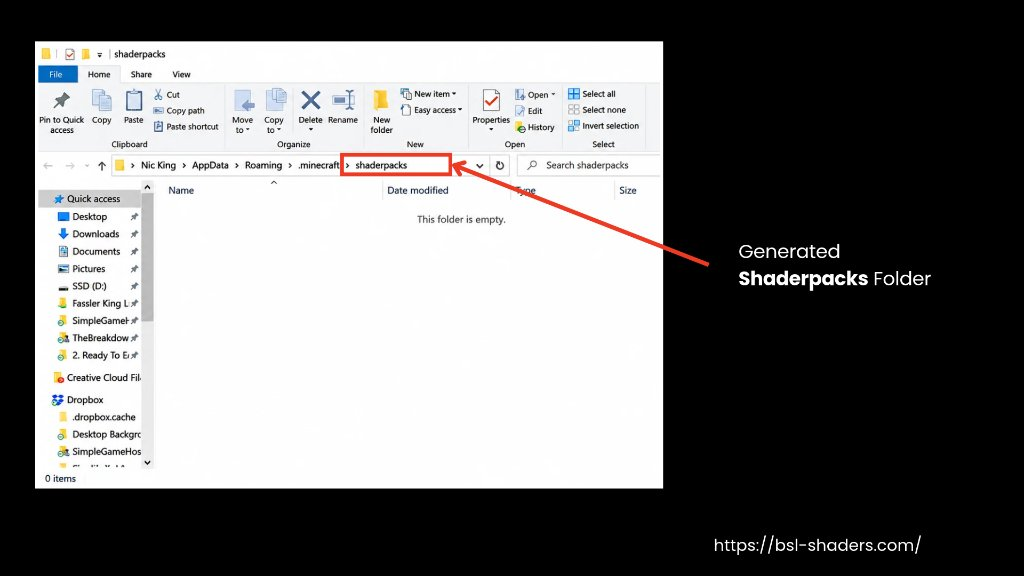
- Missing shaderpacks folder: Minecraft may not have created the shaderpacks folder yet. Launch the game once with a compatible shader loader to create it.
- Wrong file placement: The shader pack is in the resourcepacks folder, inside a nested folder, or was extracted from the ZIP file.
How to fix it?
Install Iris (its installer also installs Sodium) or OptiFine first. Follow our BSL Shaders guide for the complete setup process, then follow these steps to install and enable the shader pack safely:
- Launch Minecraft once: Select the Iris or OptiFine profile in Minecraft or your preferred launcher. Wait for the main menu to load, then close the game to generate the necessary folders, such as shaderpacks, in the Minecraft directory.
- Open the shaderpacks folder: Relaunch Minecraft and go to Options > Video Settings > Shader Packs > Open Shader Pack Folder. OptiFine labels this screen Shaders.
- Add BSL Shaders: Drag the downloaded BSL Shaders .zip file into the shaderpacks folder. Do not extract the ZIP file.
- Fix Automatically Extracted Files: If you see a shaders folder instead of a BSL Shaders .zip file, disable your browser’s auto-unzipping setting and download BSL Shaders again. Alternatively, zip the extracted BSL Shaders folder yourself.
- Check the Folder Structure: If BSL Shaders still doesn’t appear, open the shaderpacks folder. If you see a shaders folder directly inside it, create a folder named BSL Shaders and move the shaders folder into it. The final path should be shaderpacks/BSL Shaders/shaders. If you already have the BSL Shaders .zip file, place it directly inside shaderpacks instead. Do not extract the ZIP file.
- Enable and Check: Return to the game, select BSL Shaders, and click Apply.
If BSL Shaders still does not appear, try the following steps to check for conflicting mods or other compatibility issues.
BSL Shaders Not Working in OptiFine or Iris
If BSL Shaders appears in the shader menu but will not activate, check Minecraft version compatibility, your launcher profile, and conflicting rendering mods. Fixing a version mismatch or switching shader loaders usually solves the issue.
Common Causes:
- Conflicting mods: Mods that change lighting, rendering, or distant terrain may interfere with shaders.
- Incompatible versions: Your Minecraft version, shader loader, or BSL Shaders release may be incompatible.
- Multiple shader loaders: Running both Iris and OptiFine in the same instance may cause rendering problems.
- Wrong launcher profile: Minecraft starts with the vanilla profile or another installation instead of Iris or OptiFine.
- OptiFine compatibility issues: A stable OptiFine release may not be available for newer Minecraft versions.
Fixes:
Close Minecraft, then download and run the Iris Installer from the Iris Shaders website.
- Choose your Minecraft version and click Install.
- Open the Minecraft Launcher, select the new Iris profile, and click Play.
- Open Options > Video Settings > Shader Packs, select BSL Shaders, and click Apply.
Iris supports Minecraft versions from 1.16.5 through the 26.x releases on Fabric, NeoForge, and Quilt. If BSL Shaders still fails to load, try these checks.
- Keep one loader: Remove OptiFine from any instance that runs Iris.
- Match versions: Choose the BSL Shaders file compatible with your Minecraft version.
- Check mod compatibility: If you use Fabric, NeoForge, or Quilt, confirm that each mod matches your Minecraft version and loader. Check compatibility notes for mods such as Distant Horizons.
- Test a clean installation: Back up your worlds and mods, or create a separate game instance. Run Minecraft with one compatible loader and BSL Shaders, then re-enable other mods individually.
Note! OptiFine is best for older setups. It supports older Minecraft versions and some legacy shader packs. For Minecraft 1.18.1, load OptiFine through Forge. Install Forge 39.0.0, launch the Forge profile once, wait for the main menu to appear, and then close Minecraft. Place the OptiFine HD U H4 .jar file in the mods folder, then launch the Forge profile again to check whether it works.
BSL Shaders Not Loading
If BSL Shaders appears in the shader list but the world remains unchanged, Minecraft freezes during loading, or the game crashes, check shader settings, graphics drivers, and mod conflicts.
Causes:
- Demanding shader settings: High-quality shadows and lighting effects may exceed your GPU's capabilities.
- Outdated graphics drivers: Old NVIDIA, AMD, or Intel graphics drivers can cause shader rendering errors.
- Incompatible shader files: Your BSL Shaders download may not be compatible with your Minecraft or shader loader version.
- Conflicting mods: Visual or performance mods, such as Distant Horizons, may cause compatibility issues with a shader pack.
- Hardware limitations: Older graphics cards and some integrated GPUs may struggle with demanding BSL Shaders effects, as BSL Shaders is not designed specifically for low-end hardware.
How to fix it?
If BSL Shaders loads but crashes later, your graphics card may be the limiting factor. In that case, switching to a lighter shader pack may be the best solution, as troubleshooting alone may not resolve performance issues on a low-spec PC.
- Lower BSL Shaders' Quality Settings: If your GPU is struggling to run the shader pack, reduce the graphics workload.
- Open Options > Video Settings > Shader Packs.
- Select BSL Shaders and open Shader Pack Settings.
- Choose a lower Profile, such as Low or Medium.
- Apply the changes and load a world again.
- Test Another Shader Pack: Download a shader pack that lists your Minecraft version on CurseForge. If the other pack works, try a BSL Shaders release compatible with your setup. If multiple shader packs fail, investigate your shader loader, graphics drivers, and rendering mods.
- Update Your Graphics Drivers: Update your graphics drivers using the NVIDIA app, AMD Software: Adrenalin Edition, or the appropriate Intel graphics driver, then restart your PC.
- Test Your Mods: Back up your mods folder, disable mods that affect rendering or lighting, and launch Minecraft with only Iris and BSL Shaders. Then re-enable the mods one at a time to find any conflicts.
- Reinstall as a Last Resort: If BSL Shaders still fails in a clean instance, reinstall the compatible shader loader and download BSL Shaders again from its official website.
Optimization Tips for Better BSL Shaders Performance and Visuals
BSL Shaders can run but still cause stuttering or visual glitches. Use these fixes to adjust the exact settings causing the problem.
Fix BSL Shaders Performance Issues
Stuttering or lag often comes from an animation setting or missing performance mods.
- Stuttering Movement: Turn off World Time Animation under Environment > Animations.
- Low FPS with Iris: Make sure you’ve installed Sodium alongside Iris to improve performance. The Iris installer includes Sodium directly. Download the Iris installer.
- Missing Resource-Pack Material Effects: Enable Advanced Materials only when your resource pack includes compatible normal or specular maps.
Fix BSL Shaders Visual Issues
These fixes address common sky, foliage, fog, and lighting issues. For recommended settings for different PC types, see our guide on how to use BSL Shaders.
- White Upper Half of the Sky: Enable Sky under Video Settings > Details.
- Vanilla Sun and Moon Still Visible: Enable Shader Sun & Moon under Skybox, then disable Sun & Moon under Video Settings > Details.
- Leaves Look See-Through with Fast Graphics: Set Graphics to Fancy and Trees to Default or Fancy under Video Settings > Details.
- Auroras Missing: Set Aurora to Full under Skybox. Auroras appear in cold biomes when Per Biome Weather is enabled. Update OptiFine first; if the problem persists, try turning Per Biome Weather off.
- Visible Chunk Edges: Set Far Vanilla Fog to Full under Environment > Fog.
- Caves Look Too Bright: Enable Underground Sky Fix under Environment > Sky.
Conclusion
To fix BSL Shaders not working in Minecraft, start by checking your shader loader installation, shader ZIP file, and shaderpacks folder location. If BSL Shaders appears in the menu but will not load, verify version compatibility, try a lower quality profile, update your graphics drivers, and check for conflicting mods. For visual glitches, adjust the relevant BSL Shaders setting according to your preference. Change one thing at a time, and once BSL Shaders runs smoothly, you can fine-tune its appearance at your own pace and enjoy the visuals without constant restarts.
FAQs
1. Why does Minecraft crash when I load a shader pack?
Mismatched shader pack, loader, and Minecraft versions can cause crashes, along with outdated graphics drivers. Update your drivers, check the shader pack's listed versions, then try a lighter pack.
2. Why does Minecraft lag when I enable shaders?
Shaders add work for your graphics card. Lower the profile, reduce shadows and render distance, and update your graphics drivers.
3. Can I use shaders and mods together in Minecraft?
Yes. Iris works with many modded setups, but some visual or performance mods may conflict with specific shader packs. Disable mods one at a time to find the conflict.
4. Why is the sun stuck with BSL Shaders?
Make sure the daylight cycle is enabled. In current Java Edition versions, use /gamerule advance_time true. Older versions use /gamerule doDaylightCycle true. If the sun stays stuck, update Iris and Sodium.
5. How do I fix blurry or moving shadows on grass and leaves?
Low shadow resolution can cause this issue. Raise Shadow Map Quality to Medium in the shader pack's Lighting settings. If you see grainy shadows, try turning off Ambient Occlusion.